
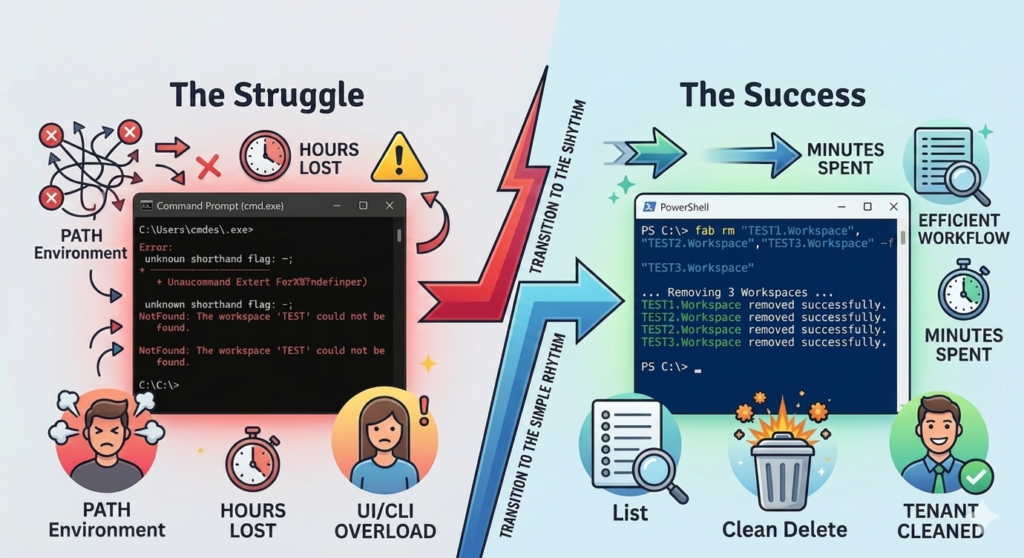
1. From Manual Clicking to CLI Mastery
We’ve all been there. It’s Friday afternoon, and you’re looking at your Microsoft Fabric tenant. It’s cluttered with dozens of abandoned test workspaces, half-finished projects, and “oops, I forgot to delete this” environments.
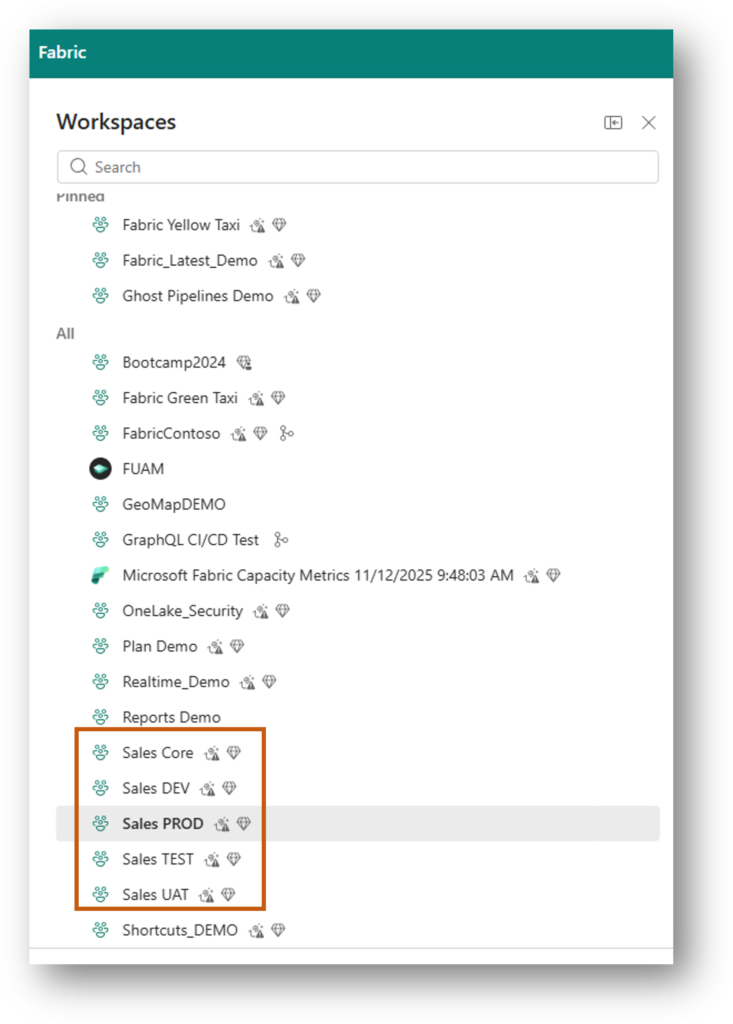
You open the portal. You click. You wait for the page to refresh. You click again. You feel the rage slowly building. As admins, we are supposed to be power users, but we often spend more time navigating UI menus than actually managing our data. I decided enough was enough and turned to the Microsoft Fabric CLI (fab) to take back control. But the path to automation wasn’t a straight line. Getting there and making it work smoothly; required a bit more than just a quick install. Let’s start with how to get the CLI running correctly.
2. Getting Started: The Official Setup
Before you can master your environment, you need a clean installation of the Fabric CLI. I recommend following the official guidance provided by Microsoft to ensure you have the latest version and all necessary dependencies correctly configured.
You can find the comprehensive setup guide here: Microsoft Fabric CLI – Installation and Setup
What to watch out for during installation:
- Python Requirements: The Fabric CLI runs on Python. Ensure you have the recommended version installed and that Python is added to your system PATH during the installation process.
- Global vs. Local: As noted in the documentation, consider whether you want to install it globally for all users or locally within a virtual environment. For admin tasks, a global installation is generally preferred to make the
fabcommand available across all your PowerShell sessions. - Verification: Once installed, don’t just jump to work. Run
fab --versionto confirm your system recognizes the tool. If you receive a command not found error, don’t panic – this is usually just a sign that you need to restart your terminal or refresh your environment variables.
3. The “Command Not Found” Roadblock
I installed the tool and fired up cmd.exe. My first attempt to run fab was met with the classic “Command Not Found.”

This is the classic PATH variable nightmare. If your system doesn’t know where the fab executable lives, it cannot run it. You have to manually ensure the path to your Python Scripts folder is added to your Windows Environment Variables.
Pro-Tip: Always open a brand new terminal window after changing environment variables, or your changes won’t be picked up by the system!
4. Why CMD is Your Enemy
Once I fixed the path, I hit another wall. I tried to chain commands to delete two workspaces at once, but cmd.exe fought me every step of the way.

cmd.exe treated my semicolon (;) as a broken flag rather than a command separator. It’s a 30-year-old tool trying to handle modern CLI syntax, and it isn’t built for it.
Switching to PowerShell was the game-changer. It understands modern syntax, pipes, and command chaining natively. If you are learning Fabric CLI, do yourself a favor and stop using the legacy Command Prompt immediately.
5. The “Simple Rhythm” Workflow
Once I was in PowerShell, I stopped trying to over-engineer complex scripts and settled into a “Simple Rhythm” that is predictable and safe:
fab ls: Get the list of workspaces.- Copy-Paste: Highlight the name from the list and copy it.
fab rm "Name" -f: Execute the deletion with the force flag.
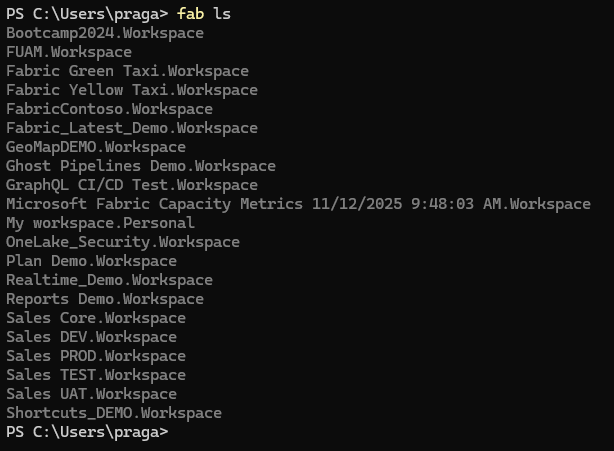
This approach guarantees no typos and keeps you in full control.
6. Scaling Up: Batch Deletion
Once you’re comfortable, you don’t have to delete one by one. You can use PowerShell to pass a list of workspace names to the fab tool to clean your tenant in seconds.
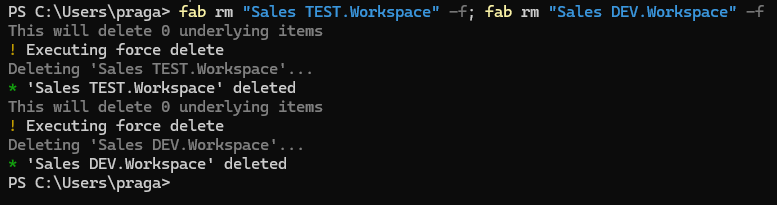
When I go back to the Fabric Portal, I can see the workspace deletions is reflected there.
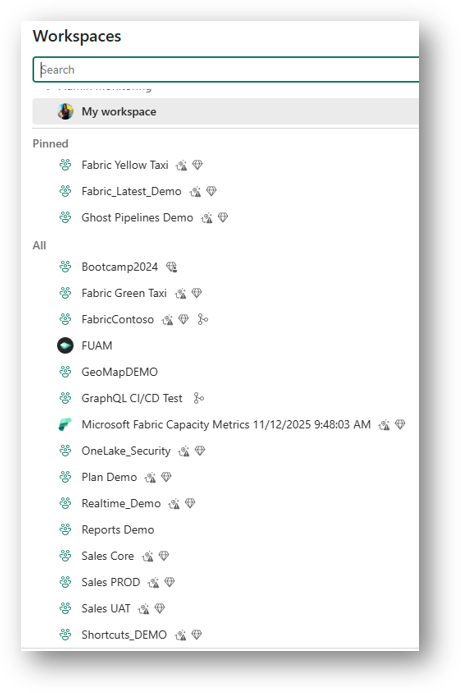
By combining the power of PowerShell pipelines with the fab CLI, you can transform a 2-hour manual cleanup job into a 5-minute task.
7. Admin’s Quick-Reference: Troubleshooting Cheat Sheet
Stuck on a specific error while managing your environment? Keep this cheat sheet bookmarked for when you need a fast answer:
| Error | Cause | The Fix |
Command Not Found | PATH not configured | Add Python Scripts path to Env Variables |
Unknown shorthand flag | Using cmd.exe syntax | Switch to PowerShell |
[NotFound] | Typos in Workspace Name | Use fab ls to copy the exact name |
Conclusion: Don’t Over-Automate
Don’t let the quest for perfect, “fancy” automation stop you from doing the work today. Fix your PATH, switch to PowerShell, and adopt a simple, manual rhythm first. Once you have that foundation, the rest of your automation will come naturally.
What’s the one task in the Fabric portal that makes you want to throw your mouse through the monitor? Let’s vent in the comments below.
One thought on “The Fabric Admin Trap: Scaling Your Cleanup”