
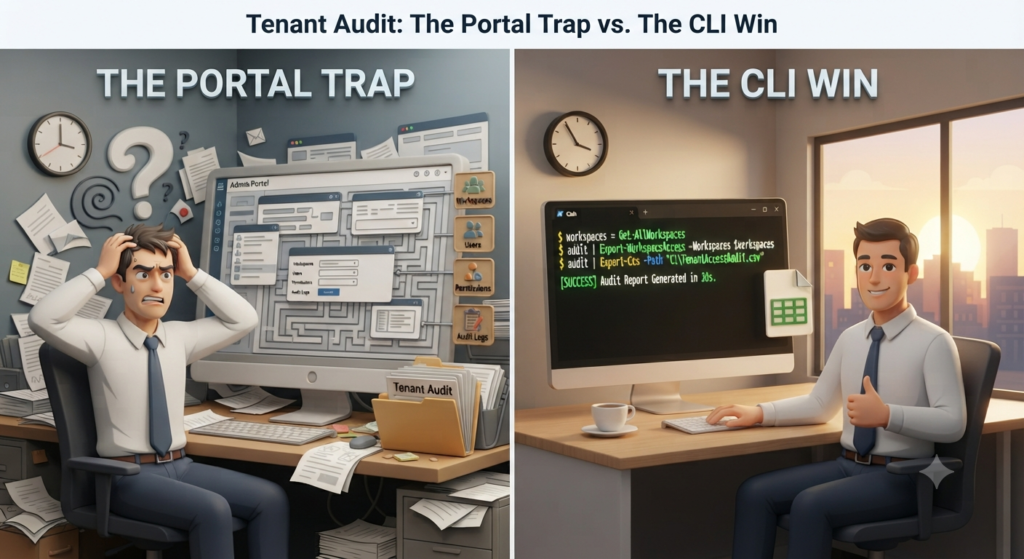
Your boss walks by your desk on a Friday afternoon with the dreaded question: “Can you give me a full audit of who has access to what in our tenant? I need to know every workspace and exactly who is in it.”
You look at the clock. It’s 4:30 PM. Your weekend plans are already set and spending the next 48 hours manually clicking through the Admin Portal, taking screenshots and copying data into Excel is not on the agenda.
The good news? You don’t have to.
The Problem: The Portal Trap
We’ve all been there. The GUI is great for making quick changes or troubleshooting a single user, but when it comes to visibility at scale, the Admin Portal is your enemy. Trying to track permissions across dozens or hundreds of workspaces is a recipe for error, fatigue, and missed details.
The CLI Win: Auditing in 30 Seconds
The Command Line Interface (CLI) is the ultimate force multiplier for tenant management. Instead of manual clicks, we can leverage scripts to query the API directly, compile the data and drop it into a clean, structured CSV file before your coffee gets cold.
Step 1: Install the Power BI Module
If you are still looking to get started with the Fabric CLI, check my earlier blog which highlights all the initial steps here.
Open a new PowerShell window and run the following command to install the necessary tools:
Install-Module -Name MicrosoftPowerBIMgmt -Scope CurrentUser -AllowClobber -ForceStep 2: Authenticate
Log in to your Fabric environment using your administrator credentials:
Connect-PowerBIServiceAccountStep 3: Run the Audit Script
Copy and paste this script into your terminal to generate the report. This script bypasses the need for non-standard commands by accessing the Users property directly from your workspace objects.
# Get all workspaces in the organization
# Note: You must be a Fabric Administrator to use -Scope Organization
try {
    $workspaces = Get-PowerBIWorkspace -Scope Organization -All -ErrorAction Stop
}
catch {
    Write-Error "Failed to retrieve workspaces. Ensure you are a Power BI Administrator."
    break
}

# Iterate and extract users
$report = foreach ($ws in $workspaces) {
    # Skip personal workspaces
    if ($ws.IsPersonalWorkspace) { continue }

    # The 'Users' property contains the access list for the workspace
    if ($ws.Users) {
        foreach ($user in $ws.Users) {
            [PSCustomObject]@{
                WorkspaceName = $ws.Name
                WorkspaceId   = $ws.Id
                UserEmail     = $user.UserPrincipalName
                AccessRight   = $user.AccessRight
            }
        }
    }
}

# Export to CSV
$report | Export-Csv -Path "D:\WorkspaceAudit.csv" -NoTypeInformation
Write-Host "Audit complete! File saved to C:\Temp\WorkspaceAudit.csv"
Your Audit Report
Once the script completes, you’ll find a perfectly formatted WorkspaceAudit.csv file in your specified directory. When you open this in Excel, you’ll see a clean, professional table that is ready for analysis, reporting, or even a quick pivot table.
It will look something like this:
| WorkspaceName | WorkspaceId | UserEmail | AccessRight |
| Finance – Q3 | a1b2c3d4-e5f6… | jane.doe@company.com | Admin |
| Finance – Q3 | a1b2c3d4-e5f6… | john.smith@company.com | Member |
| Marketing | f9e8d7c6-b5a4… | sara.admin@company.com | Admin |
| Sales Dept | 1a2b3c4d-5e6f… | sales.lead@company.com | Contributor |
Why this output is a game-changer:
- Structured Data: Unlike screenshots, this CSV is machine-readable, making it easy to filter by user or workspace.
- Searchable: Need to find every workspace where a specific user has access? Just use the filter function in Excel.
- Evidence-Ready: This is the exact documentation that your internal security and compliance teams want to see. It’s clear, concise, and audit-proof.
Why This Matters
Beyond just “saving time,” this approach is about governance and security. When you have a repeatable, automated way to audit your environment, you can run these reports weekly or monthly as a standard security check, rather than waiting for a request from management.
Conclusion
Stop fighting the Admin Portal. Start building your own toolkit. By mastering the CLI, you turn administrative “nightmares” into routine tasks, freeing yourself up for higher-value architectural and strategic work.
Pro-tip: Once you have that CSV file, use it to build a quick dashboard in Excel or Power BI to visualize your security posture. You’ll be the hero of the IT department in no time. Your weekend is yours again – go enjoy it.
Nice one. Is there a way to get List of Audience at Report level under Workspace APp ?